
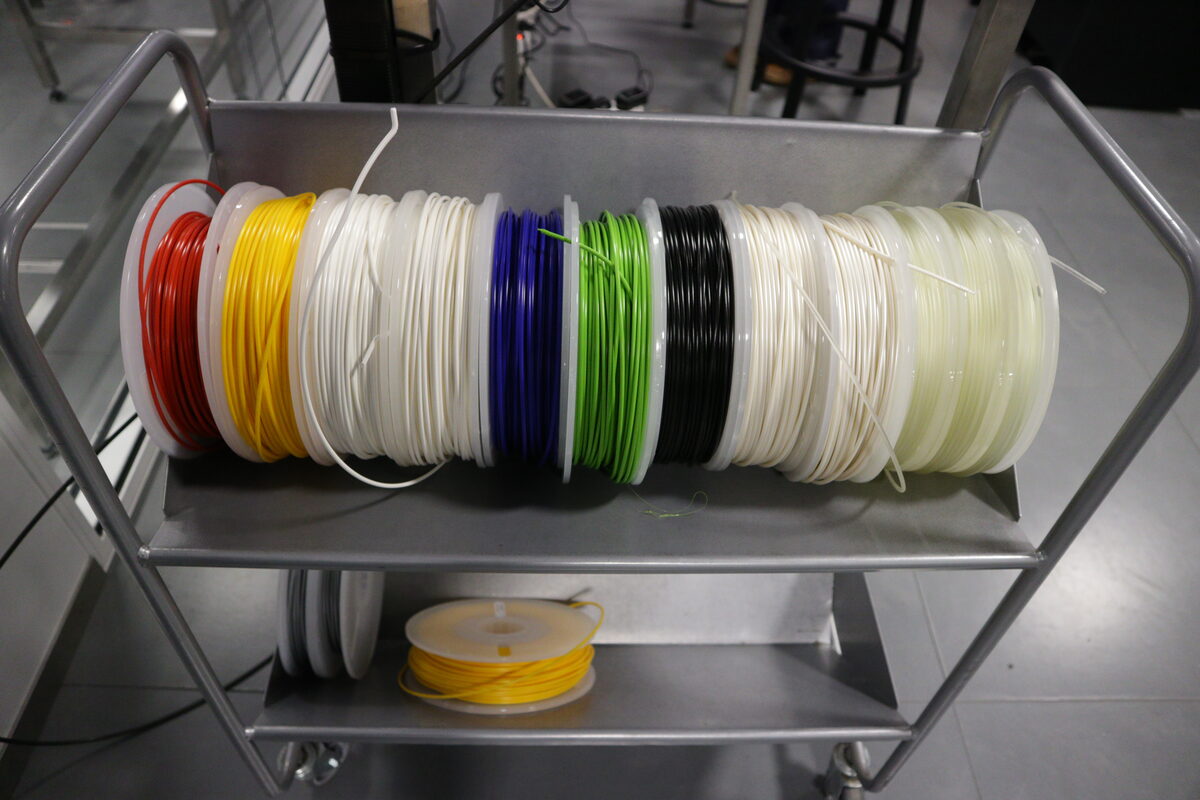
Automatic multi-material systems like the Bambu AMS and Prusa MMU3 get most of the attention in multi-color printing, and deservedly so for high-volume production. But manual color swaps via G-code pause commands remain the most accessible and lowest-waste approach for single-color-change prints: a two-tone logo, a contrasting text inlay, or a part that transitions from structural material to flexible overmold. The toolchain is mature, the hardware requirements are zero beyond a standard printer, and the failure modes are well-understood once you know where to look.
The M600 Command and What Printers Actually Do With It
M600 is the Marlin-originated G-code command for filament change. When a printer firmware encounters M600, it executes a sequence defined in its configuration: park the head at a safe position, retract the current filament, wait for user confirmation, and then run a purge sequence before resuming. The exact behavior varies significantly by firmware and configuration.
On a stock Prusa MK4S running Prusa firmware, M600 parks the nozzle at the front-left of the bed, retracts the filament to a configurable length (default 80 mm), and raises the Z axis to give clearance. The LCD prompts the user to load new filament, runs a configurable number of purge moves when the user confirms, and then returns to the paused layer position. The purge volume is the critical variable: insufficient purge leaves the old color contaminating the new filament for the first few perimeters after the swap. The Prusa firmware default of 3 purge moves of 38 mm each (about 114 mm total) is adequate for most PLA-to-PLA swaps but may be short for high-viscosity filaments or large color differences, such as black to white.
On Klipper-based printers, M600 is a macro rather than a firmware primitive. The macro definition in the printer's config file determines what actually happens. A minimal Klipper M600 macro parks the head and calls PAUSE; the purge sequence, if any, is either manual or defined in a RESUME macro. Many Klipper users on printers like the Voron 2.4 or Ratrig V-Core 4 run fully custom M600 macros with automatic purge towers or specific park coordinates tuned to their build plate geometry. The absence of a standardized purge routine is both the flexibility and the footgun of Klipper's approach.
Bambu Lab printers handle M600 differently still. On the X1C and P1S, M600 in a G-code file triggers the AMS unload/load cycle if an AMS is connected. For non-AMS printing, the relevant command is M1 (pause) or a Bambu-specific extension. The practical approach for manual swaps on Bambu printers is covered below under Bambu Studio.
PrusaSlicer: Inserting Pauses and Tuning Purge
PrusaSlicer's method for inserting color changes is the most explicit and user-directed of the three slicers covered here. In the layer view (Preview tab), drag the layer slider to the layer at which the color change should occur. Right-click on the layer indicator on the right side of the preview window and select "Add color change (M600)." A color swatch marker appears on the layer list. Multiple color changes can be inserted at different layers, stacking up to whatever the user can manage manually.
PrusaSlicer inserts an M600 command at the beginning of the marked layer, preceded by a G-code comment tag that identifies it for Prusa's firmware. If you are printing on a non-Prusa machine that does not interpret M600 natively, the Custom G-code fields (Print Settings > Output Options > After layer change G-code) can be used to add a PAUSE or M0 command instead, which halts the printer unconditionally and waits for a physical button press or serial command to resume.
The purge volume in PrusaSlicer is controlled via Printer Settings > Single extruder MM setup > Ramming settings and through the Filament-specific purge volume override. For manual single-extruder swaps, the ramming settings do not apply directly (they are designed for the MMU3 toolchange), but the purge volume can be baked into the M600 parameters by editing the custom M600 call: M600 E100 specifies 100 mm of purge extrusion. Users targeting a clean white-after-black swap on a 0.4 mm nozzle typically need at least 150 to 200 mm of purge at normal print speeds.
OrcaSlicer: Per-Layer Pause with Advanced G-Code Control
OrcaSlicer's color change workflow builds on Bambu Studio's foundation but adds significantly more control for non-Bambu printers. In the Preview panel, the layer slider on the right side of the 3D view includes a small "plus" icon when hovered. Clicking it at any layer inserts a filament change event. Unlike PrusaSlicer, OrcaSlicer displays a visual color preview of the result across layers in a multi-color mode, making it easier to visualize the swap outcome before slicing.
The machine-level G-code emitted for a filament change is configurable in OrcaSlicer's Printer Settings under Machine G-code. The "Change filament G-code" field accepts arbitrary G-code that runs at each color change event. For Klipper-based machines, a typical configuration is: M600 on one line, or a call to a custom macro like FILAMENT_CHANGE with park coordinates as parameters. For Marlin machines, the default M600 is usually appropriate with the addition of M125 (optional park head) beforehand if the printer does not park automatically.
OrcaSlicer also exposes a "Purge volume" setting per filament pair in the multi-color calibration matrix, which is normally used for AMS setups. For manual swaps, this setting does not directly control a single-extruder purge, but it informs the slicer's wipe tower calculations if a wipe tower is enabled. For manual swaps without AMS, the wipe tower is unnecessary overhead; disable it and rely on the purge G-code in the machine definition instead.
Bambu Studio: Manual Swaps on Bambu Printers Without AMS
Bambu Studio was designed around the AMS ecosystem, and it shows: the manual color-change workflow is less discoverable than in PrusaSlicer or OrcaSlicer. For AMS-equipped printers, the multi-color setup is straightforward via the Prepare panel's filament assignment. For single-extruder manual swaps on the A1 mini, P1P, or an X1C running without AMS, the approach requires directly editing the plate-level G-code or using the "Pause at layer" feature.
In Bambu Studio's Prepare view, right-clicking on any object reveals a "Change filament at layer" option in recent versions (1.8.x and later). This inserts a pause event into the sliced output. On Bambu printers, the firmware handles the pause by parking the head at the front-center of the bed and displaying a notification on the touchscreen or in Bambu Handy. The user manually unloads the current filament via the touchscreen's filament-change wizard, loads the new color, runs the built-in purge sequence, and resumes. This process is well-integrated with Bambu's UI but less flexible than OrcaSlicer's custom G-code approach for third-party printers.
For third-party printers sliced in Bambu Studio (less common but supported via custom printer profiles), the Change filament G-code field in printer settings accepts M600 or any equivalent. The behavior mirrors OrcaSlicer's approach in this configuration.
Managing Ooze and Color Bleed at the Swap Layer
The swap layer is where most failures appear. Regardless of slicer, several principles apply universally. First, the nozzle should be at temperature when the user loads new filament, not cooled down. Many printers cool the nozzle during a pause to prevent ooze, which is correct for long unattended pauses but requires the user to wait for reheat before purging, during which the printer may ooze cold plug material onto the print surface. Set the pause temperature in the M600 parameters or machine G-code to 5 to 10°C below print temperature to reduce ooze without a full cooldown cycle.
Second, purge into open air, not onto the print. Moving the head to the purge position before purging, not after, is critical. Some Marlin M600 implementations park and purge in place above the print; check the printer's M600 macro and correct it if needed.
Third, for light-after-dark swaps, consider printing a single-color purge block or sacrificial tower adjacent to the main print. In PrusaSlicer and OrcaSlicer, a small separate object on the plate positioned near the park position will accumulate the purge extrusion in a structured way rather than depositing it haphazardly.
